 How do you feel about honesty? Me… I’m a total fan! So, here goes… the only reason I am writing this post is so that I can link to it… from over on the Mr Excel Forums. While a bunch of my posts have been very not targeted at brand new folks, the people asking questions on the forum tend to be completely new to Power Pivot. They ask for a formula to do such and such… then, I have to ask if they mean a “Calculated FIeld” or a “Calculated Column”… and then they gimme the ol’ Ron Weasley look. Or at least, that is what they are doing in my head. I mean… I can’t actually see them. But, I’m pretty sure most of them are, in fact, young red headed kids..
So, I am going to step back a bit and cover this basic concept. If you are one of those people from the forum… WELCOME! Sorry about calling you a red head. Unless you are a red head. In which case… oh never mind, let’s just get on with it.
Calculated Columns
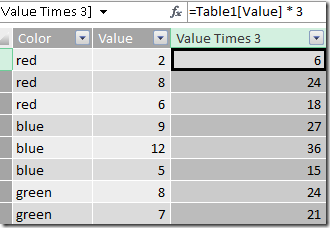 Of the two, this one is probably easier to understand. Calculated Columns are… um, well… they are columns that are… um… calculated?
  They show up in a different color, and they are based on a formula. At left, it was the wildly simple
 =Table1[Value] * 3. This does exactly what you expect, returning 3 times whatever was in the [Value] column into the new column.
Important Thing #1: This calculation happens only during data refresh. It is not dynamic at all. Specifically, it is not going to respond to any filtering from row/column filters, slicers, etc.
Important Thing #2: They can be used as a filter. You can put the values on slicers, on rows, on columns, etc.
Important Thing #3: They can be weird For proof, you can go look at this post. But I think the main thing to understand is that while (by default) you are doing operations one row at a time (like that *3 works just fine)… functions that operate “in aggregate” (SUM, AVERAGE, etc) are going to (by default) operate on the WHOLE table! To constrain them to just the current row, you need to call CALCULATE (or, use a measure… which has an implicit calculate).
Important Thing #4: I should probably write a post on the EARLIER() function.
Calculated Fields
First of all, you have to understand that all cool people call them Measures. This is what they were called before Microsoft decided to make me sad and change the name. All the old timers still call them Measures, and I have no stinking idea why they changed the name. So – in Excel 2010 they called Measures and in Excel 2013 they are called Calculated Fields.
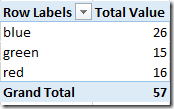
Okay, so at left is a Pivot Table based on the same table in the Calculated Column section. I have added a Measure Calculated Field: Total Value := SUM(Table1[Value])
Important Thing #1: Calculated Fields are evaluated dynamically and frequently. For the blue row, our table is filtered down to just rows with color = blue… and THEN the SUM() happens on the values. Then similar for the green row. Then the red row. Then the grand total row. 4 distinct calculations happen, one for each cell.
Important Thing #2: Calculated Fields can not be placed on rows, columns or slicers. They can only go into the “values” portion of your pivot table.
Important Thing #3: Calculated Fields always operate in aggregate. Which is to say they take a collection of rows (ie, a table)… and return a single value. =Table1[Value] * 3 would not work as a calculated field… because which Value are you multiplying by 3? There is a whole table of values! You can do things like =SUM(Table1[Value])*3 or SUMX(Table1, Table1[Value] * 3) because they take a table and return a single value.
Which To Choose
Meh. Whichever you want. JUST KIDDING!
First things first… if you want to use it on a slicer (or rows/columns) you have no choice, you must use a calculated column. Second things second (is that even a saying?) you should generally prefer Measures Calculated Fields.
It’s not a hard and fast rule, but there are two really good reasons for the preference:
1) The dynamic behavior is awesome. Remember, you are not writing “Total Dollars by City and Department”… you are just writing “Total Dollars” then using that all over, including filtering it by putting City on rows, Department on columns and <POOOF!> the numbers are magically correct. It’s HOT.
2) Performance. While *I* can imagine a calculated column that is faster because it is calculated once at refresh and stored forever… you can not. Note: If your name is Marco Russo, just kidding. You can imagine it all you want. But, the vast majority of the time… because you will save memory by not storing the calculated values (and because computers are really stupid fast at math, but much slower at retrieving memory) your model will be faster using a calculated measure.
Hopefully next time I ask you this question, you will look like Ron on the left. If you look like Ron on the right… maybe hit me up in the comments, and we will get you straightened out!


- The streak is alive! – August 10, 2017
- DAX KEEPFILTERS Plus Bonus Complaining! – July 20, 2017
- VAR: The best thing to happen to DAX since CALCULATE() – July 11, 2017
- Review: Analyzing Data with Power BI and Power Pivot for Excel – June 20, 2017
- Power BI Date Table – June 2, 2017
Scott Senkeresty here… Founder and Owner of Tiny Lizard. Yes, I have done some stuff: A Master’s Degree in Computer Science from California Polytechnic State University in beautiful San Luis Obispo, California. Over twelve years developing software for Microsoft, across Office, Windows and Anti-Malware teams… Read More >>
Hey man just wanna say thanks for this post! Makes things very clear + is funny
really great sharing! thanks!
Hey mate – I am a newbie at power pivot and last night was getting stressed thinking about the same. Thanks a ton
I have been reading and experimenting between Measures vs Column and still struggling. And I still learn more from this article, and few points outline here really make my previous understanding a lot clearer. Thank you so much for sharing.